There are two hubs that can be configured
littlest Jupyter hub (tljh)
kubernetes based hub
Configure littlest Jupyter hub (tljh)
Below are the details of setting FinAI-Lab on cloud platform
Step 1: Creating hub on any cloud platform (https://tljh.jupyter.org/en/latest/)
Step 2: Setting https:
sudo tljh-config set https.enabled true
            sudo tljh-config set https.letsencrypt.email ml.finance.book@gmail.com
            sudo tljh-config add-item https.letsencrypt.domains jhub3.finailab.com
Step 3: Create a file named jupyter_notebook_config.py in a specific location say /home/shared_config/
– pip3 install jupyterhub notebook – /home/shared_config/ – jupyter notebook –generate-config – vi jupyter_notebook_config.py Add : c.NotebookApp.tornado_settings={‘headers’: {‘Content-Security-Policy’: “frame-ancestors * ‘self’ “}} chmod -R 755 /home/shared_config/jupyter_notebook_config.py
https://github.com/jupyterhub/the-littlest-jupyterhub/issues/312 Add : c.NotebookApp.tornado_settings={‘headers’: {‘Content-Security-Policy’: “frame-ancestors * ‘self’ “}} change the permission of the file using the following code:
Step 3: Setting in the jupyterhub_config
Create the file jupyterhub-config.py under /opt/tljh/config/jupyterhub_config.d and put the following lines there.
c.Spawner.args = [ '--config=/home/shared_config/jupyter_notebook_config.py']
#c.Spawner.args = ['--NotebookApp.tornado_settings={"headers":{"Content-Security-Policy": "frame-ancestors * self *" }}']
            c.Spawner.default_url = '/lab'
            c.NotebookApp.tornado_settings = {
                "headers": {
                    "Content-Security-Policy": "frame-ancestors 'self' *",
                    "Access-Control-Allow-Origin": "*",
                }
            }
            c.JupyterHub.tornado_settings = { 'headers': { 'Content-Security-Policy': "frame-ancestors * self *"} }
sudo tljh-config reload
Kubernetes-based hub
Below are the details of setting FinAI-Lab on cloud platform
Step 1: Creating hub on any cloud platform (https://zero-to-jupyterhub.readthedocs.io/en/latest/kubernetes/index.html)
Step 2: Setting https:
sudo tljh-config set https.enabled true
             sudo tljh-config set https.letsencrypt.email ml.finance.book@gmail.com
             sudo tljh-config add-item https.letsencrypt.domains jhub3.finailab.com
Step 3: Create a file named jupyter_notebook_config.py in a specific location say /home/shared_config/
– pip3 install jupyterhub notebook –/home/shared_config/ –jupyter notebook –generate-config –vi jupyter_notebook_config.py Add : c.NotebookApp.tornado_settings={‘headers’: {‘Content-Security-Policy’: “frame-ancestors * ‘self’ “}} chmod -R 755 /home/shared_config/jupyter_notebook_config.py
https://github.com/jupyterhub/the-littlest-jupyterhub/issues/312 Add : c.NotebookApp.tornado_settings={‘headers’: {‘Content-Security-Policy’: “frame-ancestors * ‘self’ “}} change the permission of the file using the following code:
Step 4: Setting in the jupyterhub_config
Create the file jupyterhub-config.py under /opt/tljh/config/jupyterhub_config.d and put the following lines there.
c.Spawner.args = [ '--config=/home/shared_config/jupyter_notebook_config.py']
#c.Spawner.args = ['--NotebookApp.tornado_settings={"headers":{"Content-Security-Policy": "frame-ancestors * self *" }}']
             c.Spawner.default_url = '/lab'
             c.NotebookApp.tornado_settings = {
                 "headers": {
                     "Content-Security-Policy": "frame-ancestors 'self' *",
                     "Access-Control-Allow-Origin": "*",
                 }
             }
             c.JupyterHub.tornado_settings = { 'headers': { 'Content-Security-Policy': "frame-ancestors * self *"} }
sudo tljh-config reload
Step 4 : Embed the jupyter lab inside the FinAILab
Kubernetes-based hub on AWS Cloud
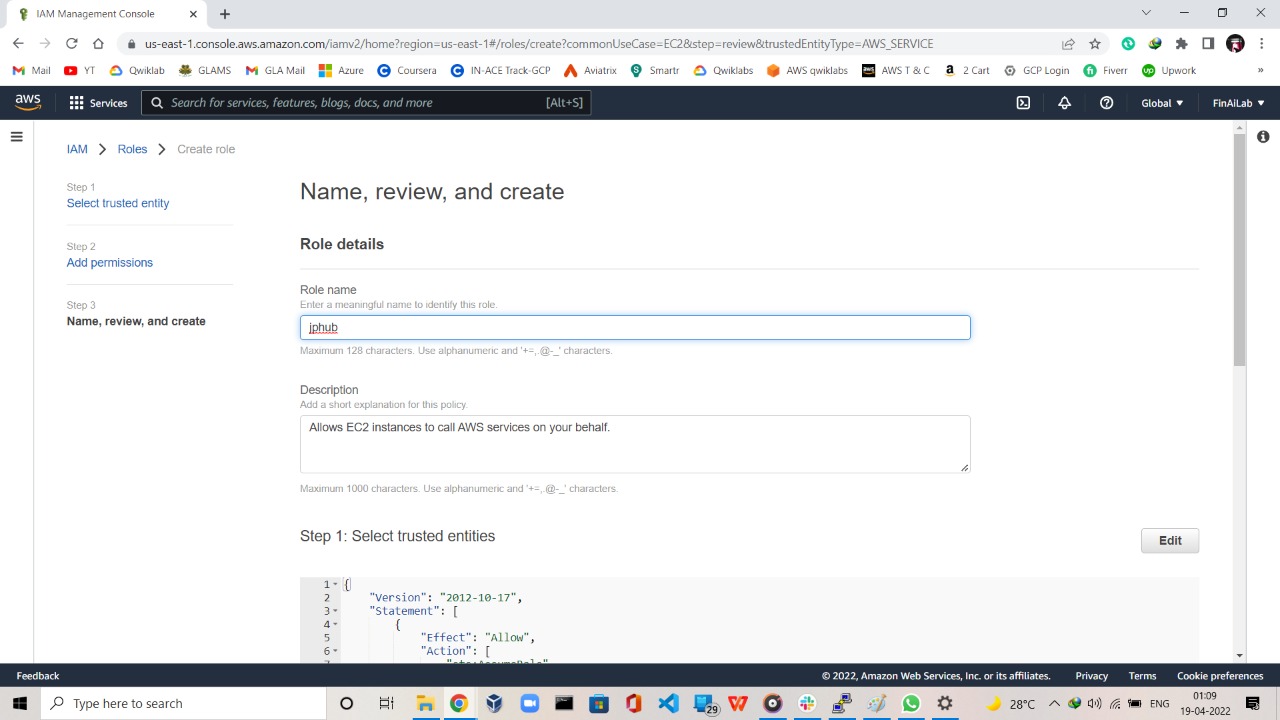
Go to IAM Roles page on AWS Console :
Follow the steps below to create the Role –>


Create the role with following permissions by searching one by one :
–> AmazonEC2FullAccess
–> IAMFullAccess
–> AmazonS3FullAccess
–> AmazonVPCFullAccess
–> Route53FullAccess

Create the new instance & login to its terminal To install kops:— https://github.com/kubernetes/kops/blob/HEAD/docs/install.md
(use commands for linux, not windows or MacOS)
# curl -Lo kops https://github.com/kubernetes/kops/releases/download/$(curl -s https://api.github.com/repos/kubernetes/kops/releases/latest | grep tag_name | cut -d ‘”’ -f 4)/kops-linux-amd64
# chmod +x ./kops
# sudo mv ./kops /usr/local/bin/
To install kubectl :— # curl -Lo kubectl https://storage.googleapis.com/kubernetes-release/release/$(curl -s https://storage.googleapis.com/kubernetes-release/release/stable.txt)/bin/linux/amd64/kubectl
# chmod +x ./kubectl
# sudo mv ./kubectl /usr/local/bin/kubectl
#pip install awscli
Create the AWS Secret Key & access key
# aws configure
Enter the credentials here & use default region us-west-1
# export NAME=jphub.k8s.local
Create the S3 bucket with a unique name:
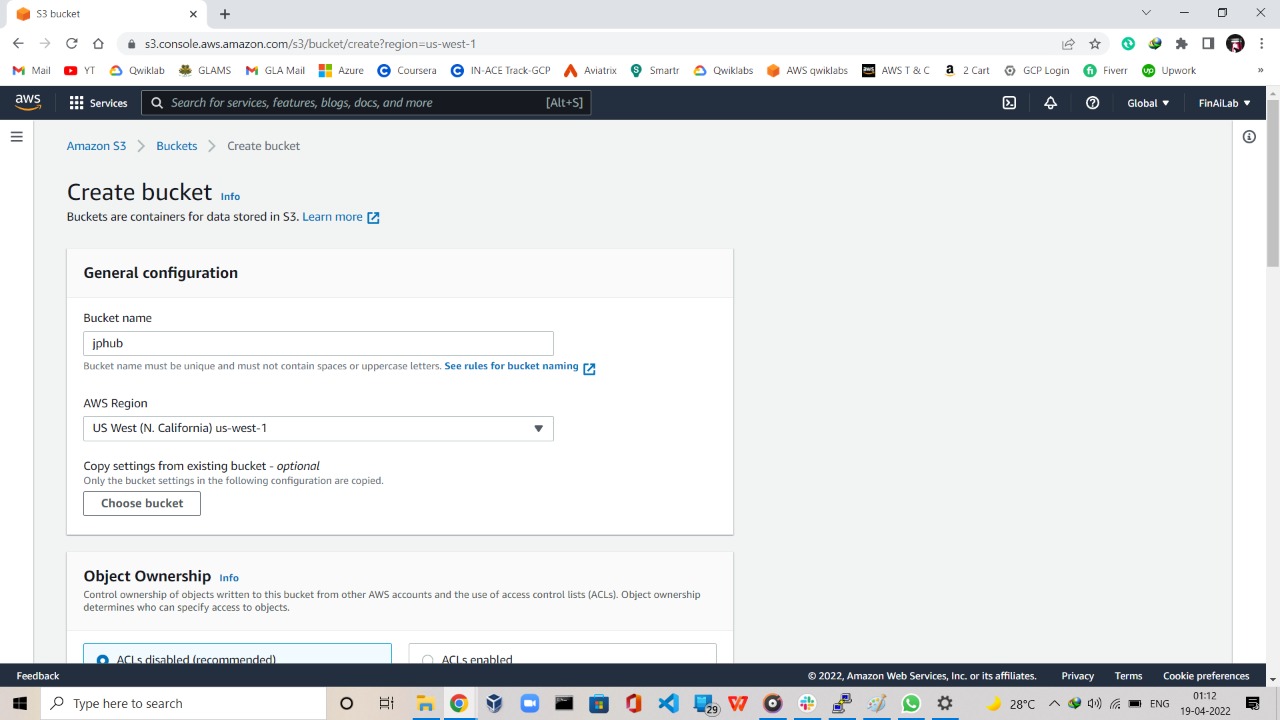
Give the public access like this way & click on create:
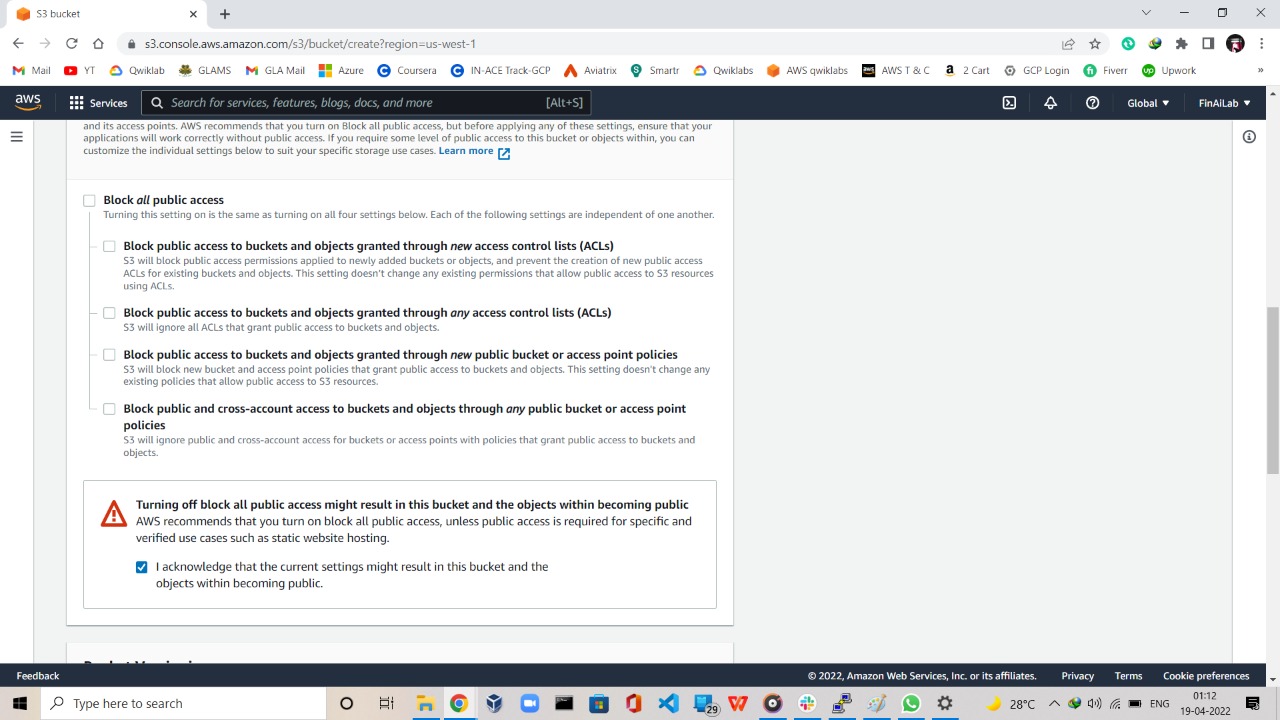
# export KOPS_STATE_STORE=s3://jphub
# export REGION=`curl -s http://169.254.169.254/latest/dynamic/instance-identity/document|grep region|awk -F" ‘{print $4}’`
# export ZONES=$(aws ec2 describe-availability-zones –region $REGION | grep ZoneName | awk ‘{print $2}’ | tr -d ‘”’)
(if this command show error replace $REGION with the region you are using)
# kops create cluster $NAME –zones “us-west-1c” –authorization RBAC –master-size t2.medium –master-volume-size 10 –node-size t2.medium –node-volume-size 10 –yes –kubernetes-version 1.22.8 –topology private –networking weave (if this command show error replace $ZONES with the zone you are using)
# time until kops validate cluster; do sleep 15; done (This command will take time to deploy the infra)
# kubectl get nodes (To check number of nodes)
# kubectl –namespace kube-system get pods
# openssl rand -hex 128 >weave-passwd
# kubectl create secret -n kube-system generic weave-passwd –from-file=./weave-passwd
# kubectl patch –namespace=kube-system daemonset/weave-net –type json -p ‘[ { “op”: “add”, “path”: “/spec/template/spec/containers/0/env/0”, “value”: { “name”: “WEAVE_PASSWORD”, “valueFrom”: { “secretKeyRef”: { “key”: “weave-passwd”, “name”: “weave-passwd” } } } } ]’
# kubectl –namespace kube-system get pods
(Wait for the weave pods to terminate & start a new pod)
copy <pod_name> from here
# kubectl exec -n kube-system weave-net-<pod_name> -c weave – /home/weave/weave –local status
HELM SETUP
# wget https://get.helm.sh/helm-v3.4.1-linux-amd64.tar.gz
# tar xvf helm-v3.4.1-linux-amd64.tar.gz
# sudo mv linux-amd64/helm /usr/local/bin
# rm helm-v3.4.1-linux-amd64.tar.gz
# rm -rf linux-amd64
# helm version
#cd /opt/tljh/config
#helm repo add jupyterhub https://jupyterhub.github.io/helm-chart/
#helm repo update
#helm install jupyterhub/jupyterhub –version 1.2.0 –generate-name –namespace kube-system
# kubectl get service –namespace kube-system
copy paste the external IP for the proxy-public service in to a browser & then create the dummy credentials
Setting Http on the Hub for K8S
edit the DNS record like this way →

Take care of the indentations in the .yml file
# cat config1.yaml proxy:
- https:
secretToken: d94132516bc6105f01b4c09f7d68c942e22649a2525cc5da4e1dab05b16fbb70
# helm list –all
# helm upgrade –cleanup-on-fail –install jupyterhub-1650178784 jupyterhub/jupyterhub –namespace kube-system –create-namespace –version=0.11.1 –values config1.yaml
GitHub login on K8S based hub
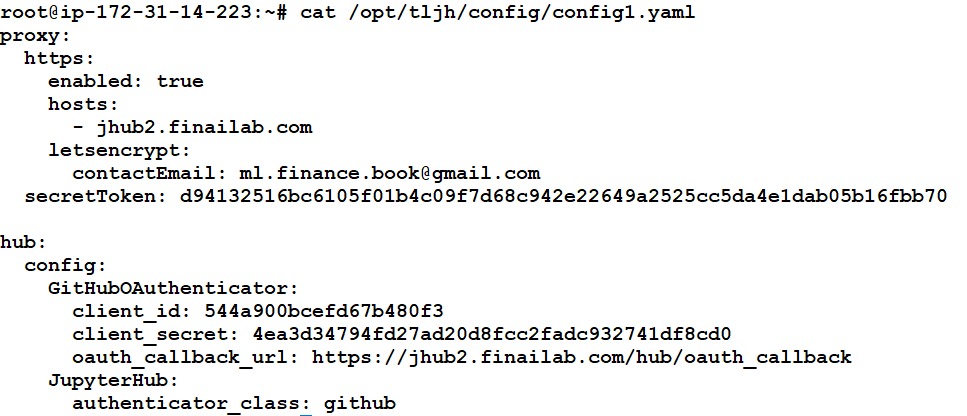
# cat /opt/tljh/config/config1.yml proxy:
- https:
enabled: true hosts:
jhub2.finailab.com
- letsencrypt:
contactEmail: ml.finance.book@gmail.com
secretToken: d94132516bc6105f01b4c09f7d68c942e22649a2525cc5da4e1dab05b16fbb70
- hub:
- config:
- GitHubOAuthenticator:
client_id: 544a900bcefd67b480f3 client_secret: 4ea3d34794fd27ad20d8fcc2fadc932741df8cd0 oauth_callback_url: https://jhub2.finailab.com/hub/oauth_callback
- JupyterHub:
authenticator_class: github
# helm list –all
# helm upgrade –cleanup-on-fail –install jupyterhub-1650178784 jupyterhub/jupyterhub –namespace kube-system –create-namespace –version=0.11.1 –values config1.yaml
To increase or edit the instance groups
# kops get instancegroups
# kops edit instancegroups nodes-us-west-1c
(Make the changes in the file and save & exit)
# kops update cluster –name kops.jhub2.finailab.com –yes –admin
# kops rolling-update cluster –yes
Open “new platform” and set up a name and the hub address. The address may be something like “http://localhost:8888/lab”